How to Redact a Screenshot So It Can't Be Seen Through
Many people cover a name or phone number in a screenshot with a pen and send it. But if the fill is semi-transparent, or you send the file in a form where edits can be undone, the text can still be read. This page lists the ways redaction fails, shows a test of whether a semi-transparent fill really leaks, summarizes what Apple's help says about iPhone Markup, and covers hiding license plates.
Bottom line
- Cover what you want hidden with a 100% opaque solid color, and export a new image.
- Do not use semi-transparent pens or highlighters, pixelation or blur for text you need hidden.
- Open the saved file yourself and check that nothing is readable before you send it.
We tested whether it leaks
We made an image containing only fictional text (Name: Taro Sample, Phone: 000-0000-0000), covered the two middle lines with an opaque black box and with a 60% opacity black box, then applied a simple contrast stretch (a basic levels adjustment) to the covered area to see if the text could be read. The images are generated by scripts/make_redact_demo.py (Python and Pillow).
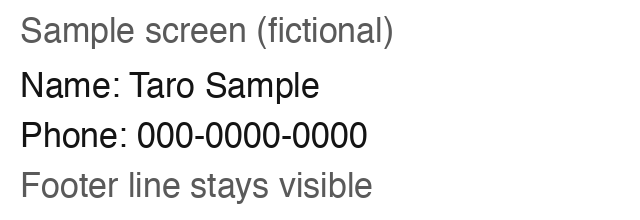
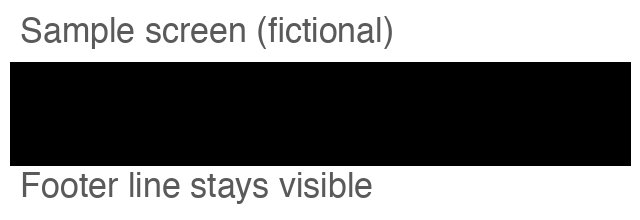
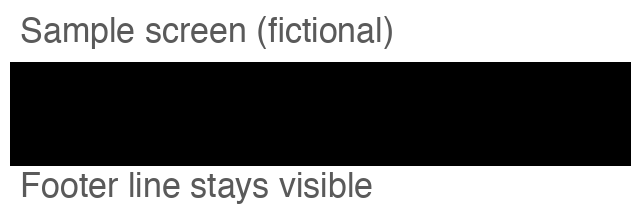
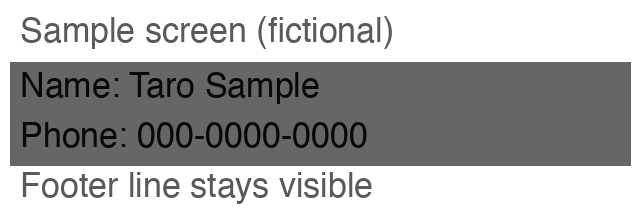
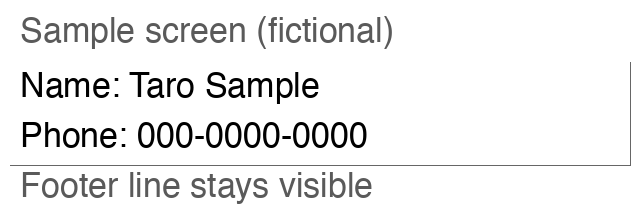
Results:
- The opaque fill was unreadable even after adjustment (the area has one color, so no original information remains).
- The 60% fill was readable after adjustment (95 colors remained in the area, so the difference between text and background survived).
This test used PNG (lossless), black text and a white background. Exporting as JPEG can make recovery harder, but there is no guarantee. The default and adjustable opacity of real apps' pens varies by app and setting; we did not test them here.
Common ways redaction fails
- Semi-transparent pen, highlighter, or a fill with reduced opacity: as the test shows, the text underneath remains. Apple's Use Markup page (checked 2026-11-09) says that after choosing a tool such as a pen, tapping the same tool again changes the color opacity. Even if you do not remember changing opacity, check the finished image.
- Pixelation and blur: public sources show that, under some conditions, the text can be guessed. See Is pixelation reversible? Use a solid black box, not blur.
- Sending a file whose edits can be undone: the iPhone Photos app can revert edits (Apple's iPhone User Guide has a section on undoing or reverting photo edits; we only confirmed the section title, not its text). If you hand over a file in a revertible form, the recipient may be able to undo your edit (we did not verify whether they can). To be safe, export the redacted result as a new image before sharing.
- Location data (EXIF): a fill hides only the visible text. The place and time a photo was taken stay in its metadata. Our EXIF removal page is Japanese only for now; the PDF route below also removes metadata.
- Missed spots: part of a notification, an icon, the next line: information can be read from places you did not cover.
iPhone Markup (what the official help says)
Checked 2026-11-09. This lists only what Apple's pages state. We did not check Mac, Windows, Android or other apps' English help pages for this edition, so they are not covered; whether their fills are fully opaque was not confirmed.
- iPhone (Apple: Take a screenshot, Apple: Use Markup): on iOS 26 you can mark up and crop a screenshot right after taking it. You can choose a pen, highlighter, pencil and so on, and tap the same tool again to change opacity. You can add a shape from the add button and resize it with the blue dots. Undo is the Undo button. Whether a shape can be filled, and the default opacity of pens, were not stated on the pages (not confirmed).
So the built-in tools are mainly for drawing, and in what we checked there was no statement guaranteeing a fully opaque fill. That is why it matters to look at the exported image yourself.
The reliable way: fill opaquely and export a new file
Our image fill tool (/image-redact/) has a Japanese-only interface and no English version yet. It draws the image on a canvas, fills the areas you drag with opaque black or white, and re-exports a PNG or JPEG (checked in its app.js); it has no semi-transparent fill or mosaic. For an English interface, use this workaround:
- Turn the screenshot into a PDF with the image-to-PDF page (accepts PNG, JPG and HEIC; runs in your browser).
- Open that PDF in the PDF redaction page and drag boxes over the parts to hide, a little larger than the text. Redacted pages are rebuilt as images, and nothing is uploaded.
- Open the saved PDF and check that nothing is readable and nothing is left uncovered.
- Send it. The result is a PDF, not an image file.
Hiding a license plate in a photo
The idea is the same as for screenshots.
- Fill the plate characters with an opaque solid color. Avoid blur and pixelation, which can leave room for guessing under some conditions (why).
- Photos of cars can carry location data (EXIF). Removing it before you post reduces clues about where the photo was taken.
- Check for other reflections or details: other cars, house signs, faces in reflections.
- You can use the same steps as above.
Physically covering the plate of a car on the road is out of scope here (a different issue). This page is only about filling in a plate that appears in a photo afterwards.
FAQ
Can text still be read under a black pen on a screenshot?
If the fill is semi-transparent, yes. In the test above, text under a 60% black box was readable after adjustment. An opaque fill was not.
Can you change pen opacity in iPhone Markup?
Apple's Use Markup page says you can tap the same tool again to change opacity. For anything you must hide, use a fully opaque fill.
Is blur or pixelation OK for redacting a screenshot?
Under some conditions it can be guessed, per public sources. See this page.
How do I hide a license plate in a photo?
Fill the characters with an opaque solid color and export a new image. Removing location data (EXIF) helps too.
Related: Is pixelation reversible? / Redact a PDF (no upload) / Photos to PDF